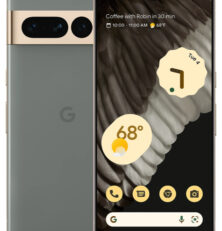
Our Quick Guide to Make the Most of Your New Pixel 7
An AndroidAppsReview.com How-To
How-To Post by AndroidAppsReview.com
We’re always on the look out for great Android smartphones and so, of course, we could not be more thrilled with Google’s execution on the heavily anticipated Pixel 7.
The Google Pixel 7 stands out from the crowd with its advanced features that are geared towards enhancing user experience. It boasts a superior camera system that leverages Google’s AI and computational photography capabilities, delivering stunning images even in low-light conditions.
There’s been lots sais about its Magic Eraser feature and for good reason, it’s a testament to the overall attention to the user experience, as it intelligently removes unwanted objects from your photos.
The device operates on the latest Android version, ensuring a smooth, fast, and up-to-date user experience. Its display is of exceptional quality, providing crystal-clear visuals. The phone also supports 5G connectivity, ensuring fast internet speeds and seamless streaming.
Pixel 7 also showcases enhanced battery life and the introduction of under-display fingerprint technology for added security. In addition, Google’s commitment to providing regular software and security updates ensures your device stays contemporary and protected.
Overall the is one Android smartphone that puts it all together; from its hardware quality to software excellence and innovative AI-driven features. The Google Pixel 7 offers a compelling blend of usability, performance, and photographic prowess.
Without further ado, let’s get to the good stuff.
Step 1: Powering on and Initial Setup
- Hold the power button located on the right side of your Google Pixel 7 to switch it on.
- Select your preferred language and region.
- If you have access to WiFi, connect to it by entering the password.
- Accept the terms and conditions to proceed.
Step 2: Google Account Setup
- If you have an existing Google Account, you can sign in with your email address and password.
- If you do not have a Google Account, you can create one by following the prompts on the screen.
- This Google Account will be used to access Google services such as Gmail, Google Drive, and Google Photos.
Step 3: Device Security
- Set up a security method for your device. This could be a pattern, PIN, password, or biometric security like fingerprint scanning.
- Follow the on-screen prompts to set up your chosen method.
Step 4: Data Transfer (Optional)
- If you’re switching from another phone, you may want to transfer your data.
- Connect the two devices using the cable provided and follow the on-screen instructions to select and transfer your data.
Step 5: Personalizing Your Phone
- Set your preferred date and time settings.
- Adjust your display settings such as brightness and font size to suit your needs.
- You can also select your desired wallpaper and ringtone here.
Step 6: Understanding Basic Navigation
- Home Button: A quick tap takes you back to the home screen from any app or screen.
- Back Button: This takes you back one step from where you are in your current app.
- Recent Apps Button: This allows you to see all the apps you currently have open.
Step 7: Downloading Apps
- Open the Google Play Store using the app icon.
- Search for the app you want and select “Install.”
- Once installed, you can open the app from the notification that appears or find it in your app drawer.
Step 8: Using Key Features
- Camera: The Google Pixel 7 boasts an impressive camera. Open the camera app to take photos or videos. You can switch between modes like portrait or night sight.
- Google Assistant: You can access your Google Assistant by saying “Hey Google” or by giving a squeeze to the sides of your device. This assistant can perform tasks, answer questions, and more.
- Google Pay: If you want to set up contactless payments, open the Google Pay app and follow the prompts to add your payment method.
Step 9: Using Magic Eraser: This is a tool in Google Photos that uses artificial intelligence to remove unwanted objects or people from your photos. Here’s how to use it:
- Take a Picture or Choose One from Your Gallery
- Open your camera app and take a photo, or select an existing photo from your gallery.
- If you’ve just taken a photo, you’ll see a small preview at the bottom-right corner of your screen. Tap on this to open the photo.
- If you’re choosing an existing photo, simply open your gallery and select the photo you wish to edit.
- Open the Google Photos Editor
- With the photo opened, you should see a few different icons at the bottom of the screen. Tap on the one that looks like a pencil. This is the edit icon, which will take you to Google Photos’ editing tools.
- Select the Magic Eraser Tool
- In the editing tools, scroll through the options until you see “Tools”. Tap on it.
- In the new set of options that appear, you should see one labeled “Magic Eraser”. Tap on this.
- Use Magic Eraser
- Once you’ve selected Magic Eraser, you’ll be back at your photo. You’ll notice that the AI has automatically highlighted some suggested objects for removal. If you agree with the suggestions, simply tap “Erase” at the bottom of your screen.
- If you want to remove a different object or person not highlighted, just use your finger to draw over the object. Make sure you cover the entire object you want to remove, then tap “Erase”.
- If you made a mistake or aren’t happy with the results, tap “Undo” at the top of the screen to revert back to the previous state of the photo.
- Save Your Changes
- Once you’re happy with the changes you’ve made, tap “Done” in the top-right corner of the screen.
- To save a copy of the photo with the changes, tap “Save copy”. This will keep your original photo intact and create a new one with the changes.
- If you’re fine with the changes being made to the original photo and don’t need a copy, simply tap “Save”.
Remember that the effectiveness of Magic Eraser can vary depending on the complexity of the photo. It works best when the object you want to remove has a fairly simple and distinct shape and is against a less detailed background. Also, you might notice that very large objects or people might not be fully removed in one go, so you may need to use the tool multiple times to get the desired result.
There you have it, we hope you enjoy using your new Google Pixel 7 and begin using as many of its amazing features as possible soon.
 Our Quick Guide to Make the Most of Your New Pixel 7
An AndroidAppsReview How-To
Find your next Android app at AndroidAppsReview.com
Assistance with this article was provided by ChatGPT based on specific prompting by our editorial team, and was then checked and edited prior to publication.
What do YOU think? We’d love to hear your comments, try it and let us know!